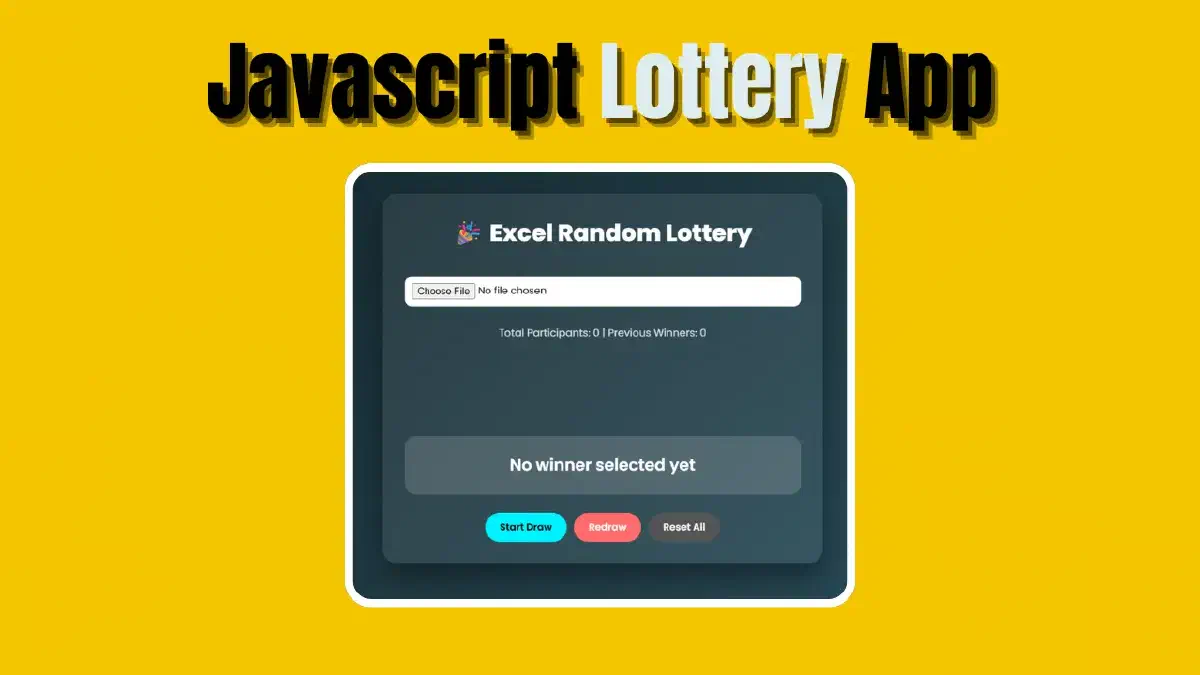

Are you looking for a fair and exciting way to choose winners for your next giveaway? In this practical guide, we will learn how to build an Electronic Name Picker App that relies on uploading an Excel file, complete with visual and high-energy effects that make the winner’s announcement moment unforgettable.
Whether you want to run a random giveaway, select students in a classroom, or distribute gifts at your company, this project is the perfect and simplest solution.
Features of the Random Draw App#
- Ease of Use: Upload your Excel file and start the draw instantly.
- Interactive & Exciting: Includes a countdown timer and “confetti” effects upon winning.
- Full Flexibility: You can easily modify the code to display names, ID numbers, or any other data.
- Smart System: Ability to redraw or reset all data to start fresh.
Tools Used in the Project#
To build this app, we will rely on core web technologies:
- HTML5 & CSS3: To build a modern and responsive interface.
- JavaScript (Vanilla JS): For the random selection engine.
- SheetJS Library: The magic library that allows us to read Excel files programmatically.
Step 1: Project Structure (HTML)#
We will create an index.html file. We use dir="rtl" (or dir="ltr" for English) to suit the user’s language, and we call the SheetJS library and the Cairo font for a premium look.
<!doctype html>
<html lang="en" dir="ltr">
  <head>
    <meta charset="UTF-8" />
    <meta name="viewport" content="width=device-width, initial-scale=1.0" />
    <title>Excel Random Draw App | Professional Name Picker</title>
    <script src="https://cdn.jsdelivr.net/npm/xlsx/dist/xlsx.full.min.js"></script>
    <link
      href="https://fonts.googleapis.com/css2?family=Cairo:wght@400;600;800&display=swap"
      rel="stylesheet"
    />
    <link rel="stylesheet" href="style.css" />
  </head>
  <body>
    <div class="container">
      <h1>🎉 Excel Random Draw</h1>
      <input type="file" id="fileInput" accept=".xlsx,.xls" />
      <div class="stats">
        Participants: <span id="count">0</span> | Previous Winners:
        <span id="historyCount">0</span>
      </div>
      <div id="counter" class="counter">3</div>
      <div id="winnerBox" class="winner-box">No winner chosen yet</div>
      <div class="buttons">
        <button class="draw-btn" onclick="startDraw()">Start Draw</button>
        <button class="reset-btn" onclick="redoDraw()">Redraw</button>
        <button class="clear-btn" onclick="resetAll()">Reset All</button>
      </div>
    </div>
    <script src="script.js"></script>
  </body>
</html>
Step 2: Design and Animation (CSS)#
We want a modern interface that looks like a mobile app. We used backdrop-filter to create a Glassmorphism effect with smooth transitions for the countdown.
Tip: Make sure to place the CSS code in a separate file named
style.cssto improve SEO performance and site speed.
* {
  box-sizing: border-box;
  margin: 0;
  padding: 0;
  font-family: "Cairo", sans-serif;
}

body {
  min-height: 100vh;
  display: flex;
  justify-content: center;
  align-items: center;
  background: linear-gradient(135deg, #0f2027, #203a43, #2c5364);
  color: #fff;
  padding: 20px;
}

.container {
  width: 100%;
  max-width: 600px;
  background: rgba(255, 255, 255, 0.08);
  backdrop-filter: blur(10px);
  padding: 30px;
  border-radius: 20px;
  box-shadow: 0 20px 40px rgba(0, 0, 0, 0.4);
  text-align: center;
}

h1 {
  margin-bottom: 20px;
  font-weight: 800;
}

input[type="file"] {
  margin: 15px 0;
  padding: 10px;
  width: 100%;
  background: #fff;
  color: #000;
  border-radius: 10px;
  border: none;
}

.stats {
  margin: 10px 0;
  font-size: 14px;
  opacity: 0.8;
}

.counter {
  font-size: 60px;
  font-weight: 800;
  margin: 20px 0;
  opacity: 0;
  transform: scale(0.5);
  transition: 0.3s ease;
}

.counter.active {
  opacity: 1;
  transform: scale(1.2);
}

.winner-box {
  margin-top: 20px;
  padding: 20px;
  border-radius: 15px;
  background: rgba(255, 255, 255, 0.15);
  min-height: 80px;
  display: flex;
  justify-content: center;
  align-items: center;
  font-size: 22px;
  font-weight: 600;
  transition: 0.4s;
}

.winner-box.glow {
  animation: glow 1s infinite alternate;
}

@keyframes glow {
  from {
    box-shadow: 0 0 10px #00f2ff;
  }
  to {
    box-shadow: 0 0 30px #00f2ff;
  }
}

.buttons {
  margin-top: 25px;
  display: flex;
  gap: 10px;
  flex-wrap: wrap;
  justify-content: center;
}

button {
  padding: 10px 20px;
  border: none;
  border-radius: 30px;
  cursor: pointer;
  font-weight: 600;
  transition: 0.3s;
}

.draw-btn {
  background: #00f2ff;
  color: #000;
}
.reset-btn {
  background: #ff6b6b;
  color: #fff;
}
.clear-btn {
  background: #555;
  color: #fff;
}

button:hover {
  transform: scale(1.05);
}

.confetti {
  position: fixed;
  width: 10px;
  height: 10px;
  background: red;
  top: -10px;
  animation: fall 3s linear forwards;
}

@keyframes fall {
  to {
    transform: translateY(100vh) rotate(720deg);
    opacity: 0;
  }
}

@media (max-width: 500px) {
  .counter {
    font-size: 40px;
  }
  .winner-box {
    font-size: 18px;
  }
}
Step 3: The Logic Engine (JavaScript)#
This is where the brain of the app lives. The script.js file performs three main functions:
- Converting Excel to Data: Via the
handleFilefunction which converts table rows into a name array. - Random Winner Selection: The
pickWinnerfunction usesMath.random()to choose a name from the list. - Celebration Effects: The
launchConfettifunction fills the screen with colors when the result appears.
let participants = [];
let winners = [];
let currentWinner = null;
let isDrawing = false;

const fileInput = document.getElementById("fileInput");
const countSpan = document.getElementById("count");
const historyCount = document.getElementById("historyCount");
const winnerBox = document.getElementById("winnerBox");
const counterEl = document.getElementById("counter");

fileInput.addEventListener("change", handleFile);

function handleFile(e) {
  const file = e.target.files[0];
  const reader = new FileReader();

  reader.onload = function (event) {
    const data = new Uint8Array(event.target.result);
    const workbook = XLSX.read(data, { type: "array" });
    const sheet = workbook.Sheets[workbook.SheetNames[0]];
    const json = XLSX.utils.sheet_to_json(sheet);

    participants = json.map((row) => Object.values(row)[0]);
    countSpan.textContent = participants.length;
  };

  reader.readAsArrayBuffer(file);
}

function startDraw() {
  if (isDrawing || participants.length === 0) return;

  const available = participants.filter((p) => !winners.includes(p));
  if (available.length === 0) {
    alert("All participants have been selected!"); // تم اختيار جميع المشاركين
    return;
  }

  isDrawing = true;
  winnerBox.classList.remove("glow");
  let count = 3;
  counterEl.textContent = count;
  counterEl.classList.add("active");

  const countdown = setInterval(() => {
    count--;
    counterEl.textContent = count;
    if (count === 0) {
      clearInterval(countdown);
      counterEl.classList.remove("active");
      pickWinner(available);
    }
  }, 1000);
}

function pickWinner(list) {
  let i = 0;
  const spin = setInterval(() => {
    winnerBox.textContent = list[Math.floor(Math.random() * list.length)];
    i++;
    if (i > 20) {
      clearInterval(spin);
      currentWinner = winnerBox.textContent;
      winners.push(currentWinner);
      historyCount.textContent = winners.length;
      winnerBox.classList.add("glow");
      launchConfetti();
      isDrawing = false;
    }
  }, 100);
}

function launchConfetti() {
  for (let i = 0; i < 50; i++) {
    const conf = document.createElement("div");
    conf.classList.add("confetti");
    conf.style.left = Math.random() * 100 + "vw";
    conf.style.background = `hsl(${Math.random() * 360},100%,50%)`;
    conf.style.animationDuration = 2 + Math.random() * 2 + "s";
    document.body.appendChild(conf);
    setTimeout(() => conf.remove(), 3000);
  }
}

function redoDraw() {
  if (!currentWinner) return;
  winners = winners.filter((w) => w !== currentWinner);
  historyCount.textContent = winners.length;
  winnerBox.textContent = "Draw Reset Successfully"; // تمت إعادة السحب
  winnerBox.classList.remove("glow");
  currentWinner = null;
}

function resetAll() {
  participants = [];
  winners = [];
  currentWinner = null;
  countSpan.textContent = 0;
  historyCount.textContent = 0;
  winnerBox.textContent = "No winner chosen yet"; // لم يتم اختيار فائز بعد
  winnerBox.classList.remove("glow");
  fileInput.value = "";
}
Key Functions Explained:#
startDraw: Starts the countdown (3.. 2.. 1) to build suspense before the result.redoDraw: Allows you to cancel a specific draw and try again without repeating the same winner.resetAll: Clears all uploaded data to start a completely new competition.
How to Ensure a Successful “Name Draw” in Your App?#
For the best user experience, make sure to:
- Format the Excel file so that the first column contains the names.
- Test the app on different browsers (Chrome, Safari, Firefox).
- Add your own logo at the top of the page to strengthen your brand.
Conclusion#
Coding a Random Draw App is no longer a complex task. Using just a few lines of code and the SheetJS library, you can own your private tool for free and without any annoying ads.
Did you like this project? If you have questions on how to modify the code to show extra data (like phone numbers or emails), leave us a comment below!
The code on GitHub: